Git for Windows Installation
- Execec Installer. Click
Next
.
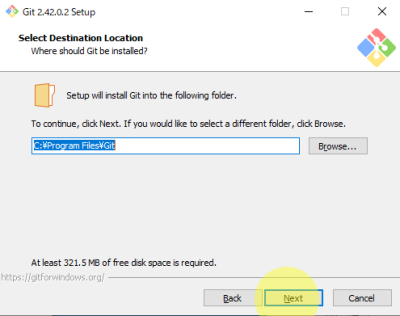
- Click
Next
.
- Select more components, If you want. Click
Next

- Click
Next.
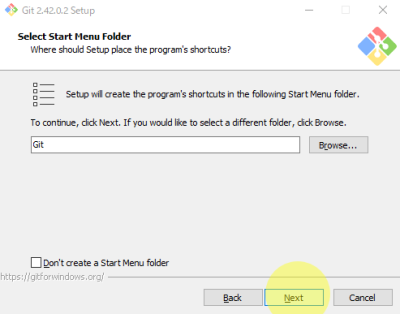
- Select your
preferred text editor. ClickNext.
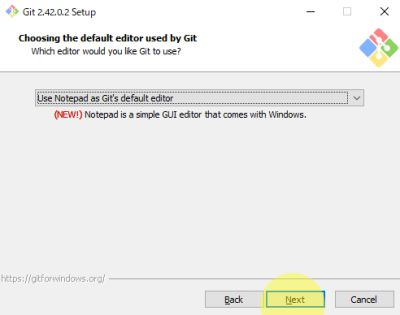
- Select [
Let Git decide]. ClickNext.

- Select [
Git from the command line and also from 3rd-party software]. ClickNext.
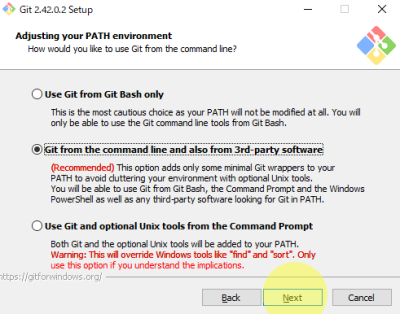
- Select [
Use bundled OpenSSH]. ClickNext.

- Select [
Use the OpenSSL library]. ClickNext.
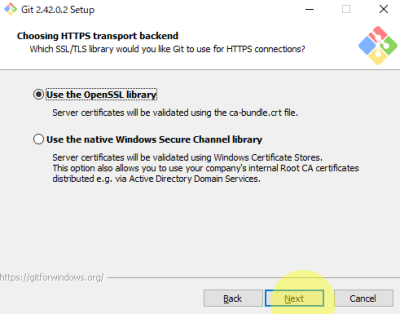
- Select [
Checkout as-is, commit as-is]. ClickNext.
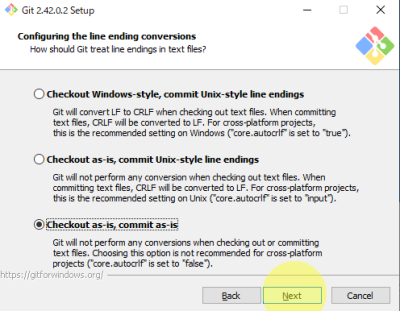
- Select the one you prefer. Click
Next.

- Select [
Default(fast-forward or merge)]. ClickNext.
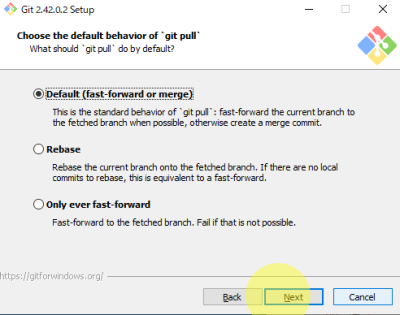
- Select [
Git Credential Manager]. ClickNext.
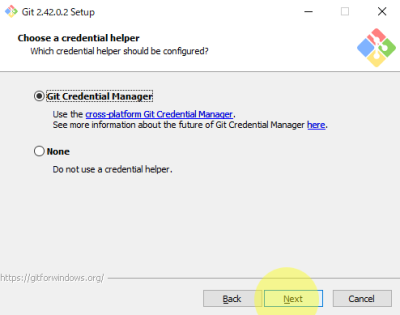
- Select
Both. ClickNext.

- Click
Install.
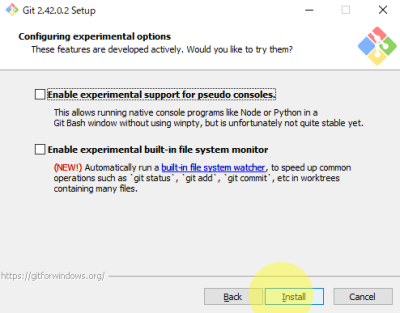
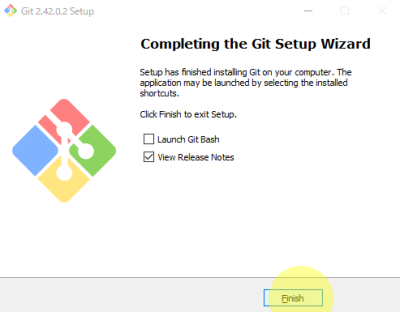
- Click
Finish.
- Open
Command Prompt. Check git installationC:\Users\kan>git --version git version 2.42.0.windows.2
- Set user.name and user.email with git config
C:\Users\kan>git config --global user.name  "YourName"
C:\Users\kan>git config --global user.email  "Your@email.address"
C:\Users\kan>git config --list
diff.astextplain.textconv=astextplain
filter.lfs.clean=git-lfs clean -- %f
...
...
user.name=YourName
user.email=Your@email.com
credential.helper=manager